SharePoint User Id Mismatch Issue Explained
Overview
A common issue in SharePoint, known as User ID Mismatch, occurs when a user account is deleted from the directory and later recreated with the same UPN (User Principal Name). This often happens when an employee is rehired or returned from a long leave or when a common name like John Smith is reused. In short, reusing a username in the directory can trigger a User ID Mismatch in SharePoint.
Symptoms - Scenario 1:
- A user requests access to a site.
- The site owner approves the request.
- The user still cannot access the site and receives “Access Denied” error.
Symptoms - Scenario 2:
- A site owner shares content with the user (shares link).
- The user follows the link but gets “Access Denied” error.
Can a users recognize the User id Mismatch issue or it takes an admin efforts?
Yes, from a user perspective it’s possible to notice the difference in the SharePoint and understand if it is a “User Id Mismatch” issue.
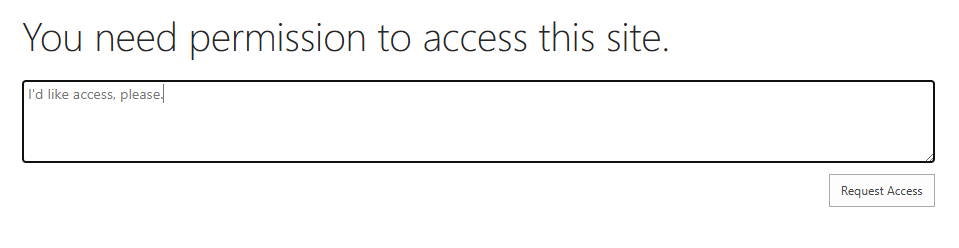
Normally, when a user hits a SharePoint Url he/she has no access to, an AccessDenied.aspx page is loaded saying “You need permission to access this site.” and there is a text form pre-populated with “I’d like access, please.” text:
When user clicks “Request Access” button - an additioal text bar appears that says “Awaiting approval. We’ll let you know about any updates.” Below the form user can see his/her requests history:
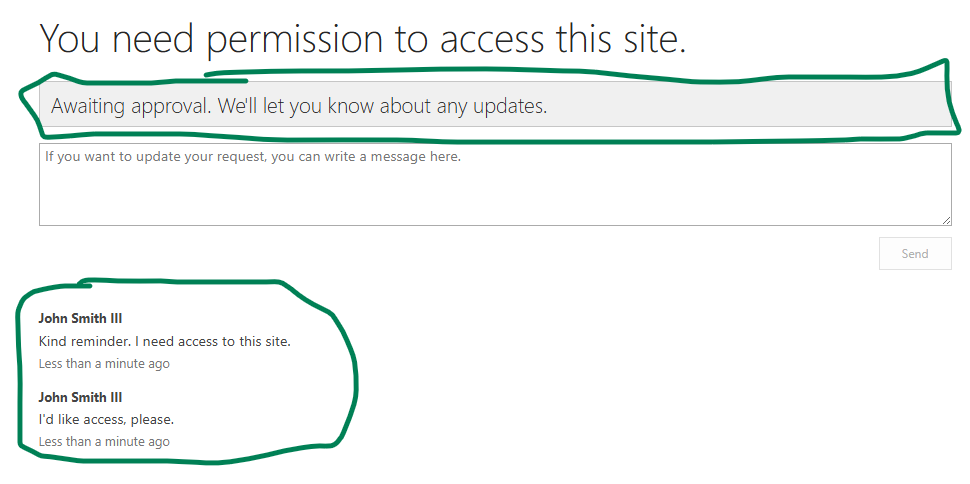
In case of a User id Mismatch issue - after user clicks “Request Access” button - nothing is changed, i.e. there is no “Awaiting approval. We’ll let you know about any updates.”, and there is no user’s requests history - a user would still see the same “You need permission to access this site.” and a form to Request Access:
This is how based on the AccessDenied page behavior you can spot the issue.
Why Does This Happen?
SharePoint maintains its own user data in its database behind, including:
- UPN
- Local Active Directory Id (SID)
- Entra ID Object Id
When a reused UPN attempts to access a site, SharePoint blocks access. This behavior is logical because:
- The system cannot confirm if the user is the same person (rehired) or a different person with the same name.
- A rehired user may have a different role.
- A completely different person should never automatically inherit previous permissions.
Access must be re-granted manually. However, here’s the catch:
When a site owner approves the new user’s access request, Microsoft does not update the user in the User Information List (UIL). To the site owner and affected site user, it appears that access was granted, but in reality, it was not.
Instead of fixing this in the product, Microsoft provides a workaround: remove the old user from the UIL. Once the old user ID is removed, the new user ID can be added without issues.
Important Notes
- Deleting a user from the UIL does not remove ALL user’s data. For example, document history will still show the old username.
- Each user or group on a site has a Site User ID, an integer starting from 1. Deleting and re-adding the same user retains the same Site User ID, but a reused UPN will get a different number.
Solutions to Fix the User ID Mismatch
There are three main approaches:
- Admin via Microsoft 365 Admin Center using Diagnostics tools
- Site owner/admin via Site Settings and the
MembershipGroupId=0trick - Site owner/admin using PowerShell
Fixing with Microsoft Diagnostics
Microsoft provides two diagnostics:
Site User Mismatch Diagnostic
Validates internal users and guests who try to access SharePoint and OneDrive sites.Check User Access Diagnostic
Performs similar verifications for internal users and guests.
When you run these diagnostics:
- You provide the site URL and UPN.
- The tool reports:
“We found a SharePoint site user with a mismatched ID. The user must be removed and re-shared with appropriate permissions.”
The diagnostic can remove the mismatched user from the site. After removal, you must re-share the site with the user. This action deletes all previous permissions.
Note: Microsoft not only removes the user from the UIL but also adds the new user (without permissions).
Fixing via Site Settings
This method works for site owners or collection admins, but it’s practical only for sites with a small number of users.
Steps:
- Navigate to:
Site Settings → Site Permissions → Advanced Permissions - Select any group, then in the browser address bar, change the
MembershipGroupIdto0:https://domain.sharepoint.com/teams/mySite/_layouts/15/people.aspx?MembershipGroupId=0 - Find the user in the list and delete them:
Actions → Delete User from Site Collection
See also
- Remove people from the UserInfo list - Microsoft
- Fix site user ID mismatch in SharePoint or OneDrive - Microsoft
- PowerShell script to detect and fix SharePoint site user ID mismatch issue